Proctored Exam Help: What To Do When Something Goes Wrong
Last updated September 5, 2026
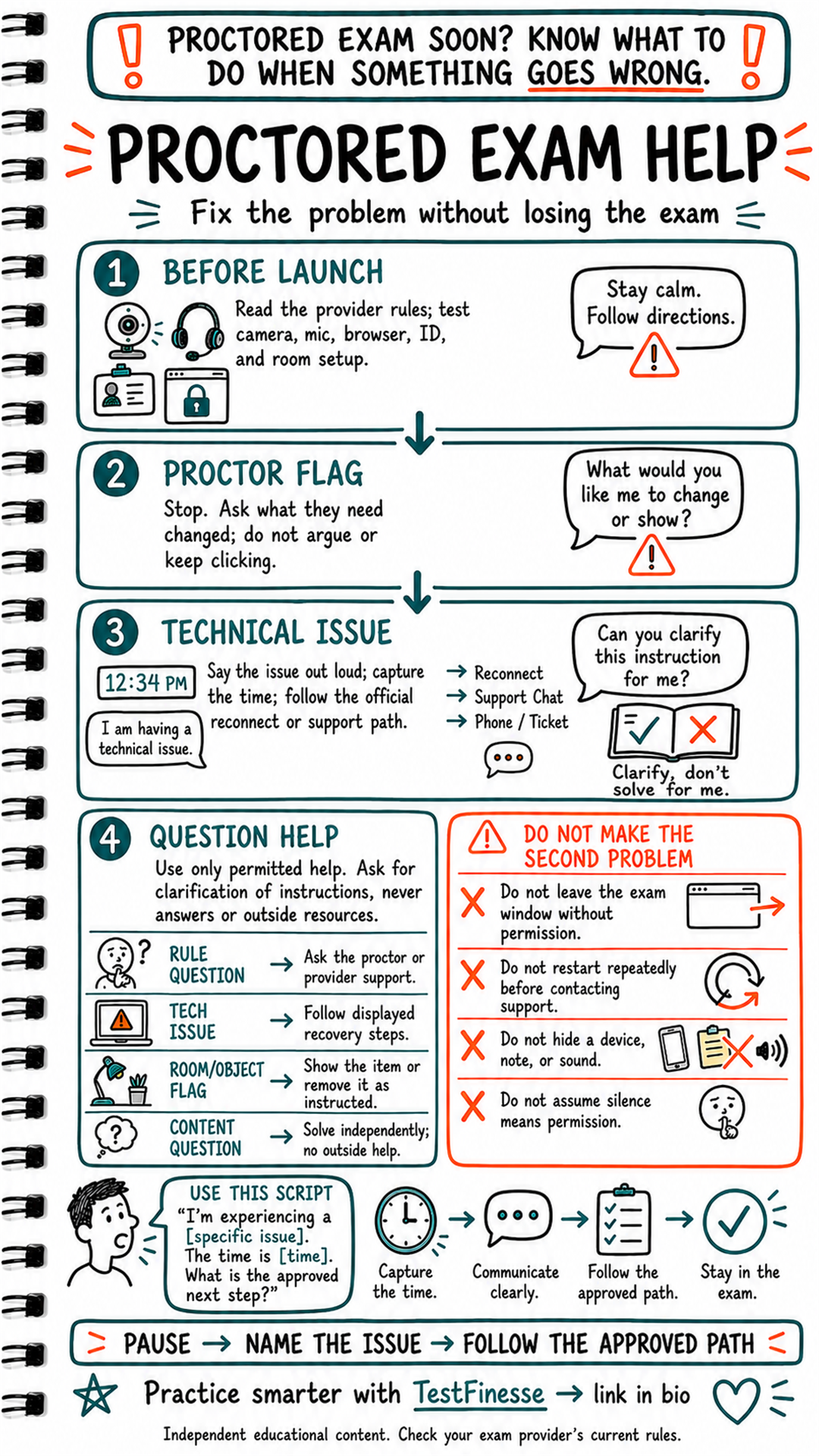
A technical issue or proctor interruption can make an already stressful exam feel unpredictable.
The most important response is not to argue, panic, keep clicking, or start improvising. It is to pause, identify the issue clearly, and follow the exam provider’s approved process.
The central framework is:
Pause → Name the issue → Follow the approved path
This approach protects both your testing experience and your compliance with the exam rules.
Every provider handles proctoring, technical problems, breaks, permitted materials, and rescheduling differently. The instructions in your exam confirmation, candidate bulletin, testing platform, and proctor directions always control.
Before The Exam Starts
Preparation begins before the launch screen.
Read the provider’s current rules and confirm:
Required identification
Permitted and prohibited items
Room and desk requirements
Camera placement
Microphone and speaker expectations
Browser or application requirements
System-check deadlines
Break rules
Technical-support procedures
What happens if the exam disconnects
Test the equipment you will actually use:
Camera
Microphone
Speakers or headset
Internet connection
Browser
Power source
Required software
Identification document
Room setup
Do not assume that a system check guarantees everything will work on exam day. It reduces preventable problems, but you still need to know how to report an issue if something changes.
Preparation is not memorizing every possible failure. It is knowing the approved response.
1. If The Proctor Flags Something
If the proctor asks you to stop, change something, show an item, or adjust your environment, stop and listen.
Do not:
Argue
Keep clicking through screens
Continue answering while trying to explain
Guess what the proctor wants
Hide the item or device
Leave the testing area without permission
Use a calm clarification script:
“What would you like me to change or show?”
Then follow the direction exactly.
A proctor flag does not automatically mean your exam is over. It means the testing conditions need attention. Your job is to cooperate clearly and preserve the testing process.
If the instruction is unclear, ask for clarification rather than improvising.
Clarify the instruction; do not solve the problem yourself by guessing.
2. If A Technical Issue Happens
When the screen freezes, the connection drops, the audio stops, or the testing application behaves unexpectedly, state the issue out loud.
Record:
What happened
The approximate time
What you were doing when it happened
Any message displayed
Whether the screen changed
Whether the proctor responded
A useful script is:
“I am experiencing a technical issue. The time is [time]. What is the approved next step?”
Then follow the official recovery path, which may include:
Reconnecting
Waiting for the proctor
Using an in-platform support chat
Calling an approved support number
Receiving a ticket or incident number
Rescheduling under the provider’s policy
Do not repeatedly restart the application unless the provider instructs you to do so. Repeated, unauthorized actions can create additional confusion and may make it harder to document what happened.
For the NCLEX, for example, the current candidate bulletin explains that certain technical delays may result in a choice between continuing to wait or rescheduling, depending on the circumstances and length of the delay. The specific policy is exam-specific, so candidates should consult the current bulletin rather than rely on general proctoring advice. 2026 NCLEX Candidate Bulletin
3. Know What Kind Of Help Is Permitted
Not every problem is the same kind of problem.
Separate the issue into four categories.
Rule Question
You do not understand an instruction or testing rule.
Ask the proctor or provider support for clarification of the procedure. Do not ask for help solving an exam item.
Technical Issue
The platform, camera, microphone, browser, or connection is not working correctly.
Follow the displayed recovery steps and the provider’s official support path.
Room Or Object Flag
The proctor identifies something in the room or testing area.
Show the item or remove it as instructed. Do not hide it, move it out of view, or assume silence means permission to keep it.
Content Question
You are unsure how to solve an exam question.
Solve it independently. Do not ask the proctor, support team, another person, or an outside resource for the answer.
Clarification of administration is different from assistance with content.
4. Keep The Second Problem From Happening
A small technical or proctoring problem can become a larger compliance problem when the response is impulsive.
Avoid:
Leaving the exam window without permission
Restarting repeatedly before contacting support
Using a phone, notes, or hidden device
Making sounds or gestures intended to obtain outside help
Assuming that silence means you may continue
Opening unauthorized applications
Recording or photographing exam content
Writing down or reconstructing questions
Asking another person to solve an item
For the NCLEX, NCSBN rules address prohibited assistance, personal items, exam content, and testing conduct. Candidates should review the current bulletin and candidate rules for their specific administration. NCSBN Exam Publications
Do not create a security issue while trying to solve a technical issue.
Use A Clear Communication Script
When something goes wrong, use concise language:
“I’m experiencing a [specific issue]. The time is [time]. What is the approved next step?”
Examples:
“My screen is frozen. The time is 10:42 a.m. What should I do?”
“The proctor asked me to change something, but I want to confirm the instruction.”
“My connection dropped and I have returned to the testing screen. Should I wait or reconnect?”
“The camera is no longer recognized. What is the official support path?”
Clear communication gives the proctor useful information without adding unnecessary explanation.
Stay In The Exam Process
Do not assume a pause means the exam is invalid. Do not assume a delay means you should abandon the session. Do not assume the proctor’s silence gives you permission to take an action.
Wait for the approved instruction.
If your exam provider permits you to report an irregularity, follow the required timing and reporting method. Some providers require concerns to be reported before leaving the testing environment or within a stated window.
Keep any incident number, support message, or confirmation supplied by the provider. Do not post exam content publicly while describing what happened.
Use The TestFinesse Practice Loop
You can practice this response sequence before exam day:
Answer: Identify the immediate issue without guessing.
Explain: State what happened, when it happened, and what you need clarified.
Reveal: Check the provider’s official instructions or support process.
Fix the gap: Write the exact script or next step you will use.
Practice scenarios such as:
Camera failure
Microphone failure
Connection loss
Proctor room flag
Unclear break instruction
Unexpected browser message
Question about permitted materials
The goal is not to rehearse a dramatic speech. It is to make your first move calm and precise.
Final Takeaway
When a proctored exam problem occurs, protect the exam by following the process.
Pause. Name the issue. Communicate clearly. Follow the approved path.
Do not argue with the proctor, seek unauthorized content help, repeatedly restart, or assume that silence means permission. Provider rules vary, so review the current official instructions before exam day.
Independent educational content. Check your exam provider’s current rules and follow the directions of the authorized proctor or support team.
Accuracy sources checked: 2026 NCLEX Candidate Bulletin, NCSBN Exam Publications
Keep studying
Practice Exam Skills
Turn this into a better score
Reading about a skill only gets you so far. TestFinesse's AI coach walks you through exam questions, explains exactly where your reasoning breaks down, and adapts to what you actually need to practice next.
Explore All Exams